



conedodger
Community Member
-
Joined
-
Last visited
Everything posted by conedodger
-
This ones been fighting with the devil it appears!

-
RA Pace car?
 Love this shot...
 Oh my!
 Pit garage
 Oh no! You are talking about THE #46 car. Not a replica...Getting some BBQ at MAR
 A Datsun Cherry factory car which has been in NZ since the factory delivered it.

 Approach straight 10 ~ 11
 Pits...
 BX10?
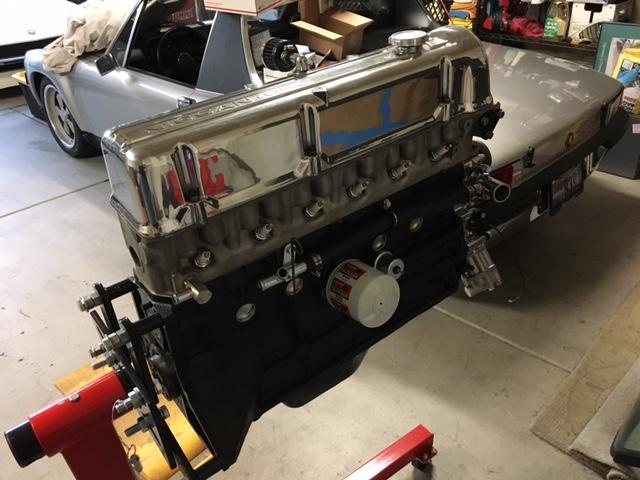
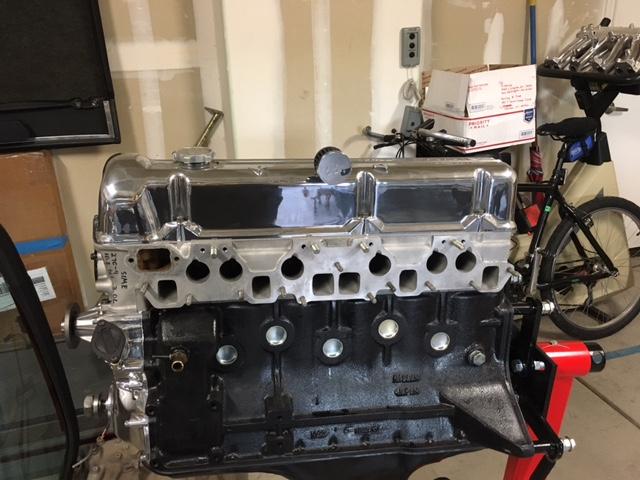
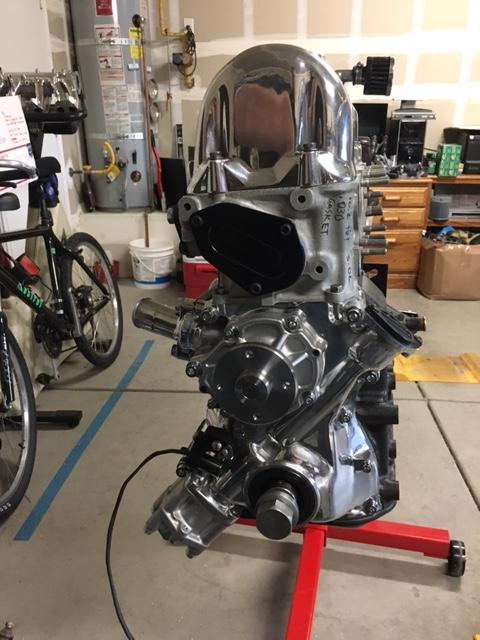
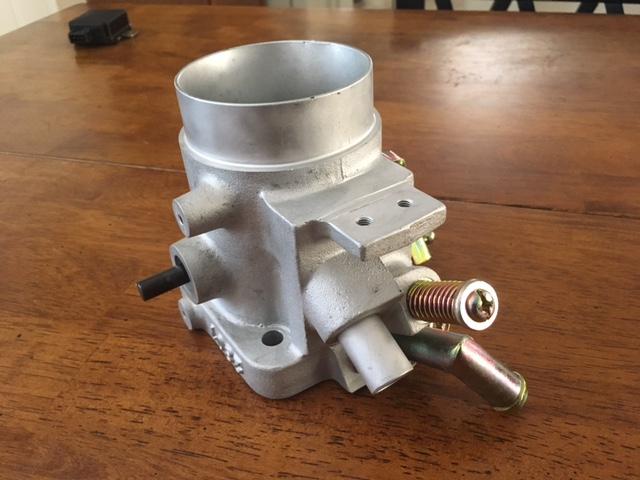
 Mark, as my dad used to say, ‘kid, don’t concern yourself with my money.’ ‘ I earned it and I’ll spend it the way I want!’ I hear you though...It’s a because I can kind of thing. It’s safer too. Can’t get stuck at WOT. I just popped the hood on two of my five cars and found DBW. Most things with Haltech are basically tell the ECU it’s there and it will figure it out on its own.You guys using aftermarket EFI, particularly Haltech, what electronic throttle body and electronic pedal are you using. I’m told Nissan used the same throttle body bolt pattern for decades so that is an obvious starting point... im going to use a Haltech Elite 2500 so it makes sense to use it to its fullest potential. im using a stock 280Z intake that has been extrude honed.


 Road Atlanta turn 11
 PLN at Road America
 Certainly angry looking...




















Important Information
By using this site, you agree to our Privacy Policy and Guidelines. We have placed cookies on your device to help make this website better. You can adjust your cookie settings, otherwise we'll assume you're okay to continue.
Account
Navigation
Search
Configure browser push notifications
Chrome (Android)
- Tap the lock icon next to the address bar.
- Tap Permissions → Notifications.
- Adjust your preference.
Chrome (Desktop)
- Click the padlock icon in the address bar.
- Select Site settings.
- Find Notifications and adjust your preference.
Safari (iOS 16.4+)
- Ensure the site is installed via Add to Home Screen.
- Open Settings App → Notifications.
- Find your app name and adjust your preference.
Safari (macOS)
- Go to Safari → Preferences.
- Click the Websites tab.
- Select Notifications in the sidebar.
- Find this website and adjust your preference.
Edge (Android)
- Tap the lock icon next to the address bar.
- Tap Permissions.
- Find Notifications and adjust your preference.
Edge (Desktop)
- Click the padlock icon in the address bar.
- Click Permissions for this site.
- Find Notifications and adjust your preference.
Firefox (Android)
- Go to Settings → Site permissions.
- Tap Notifications.
- Find this site in the list and adjust your preference.
Firefox (Desktop)
- Open Firefox Settings.
- Search for Notifications.
- Find this site in the list and adjust your preference.