


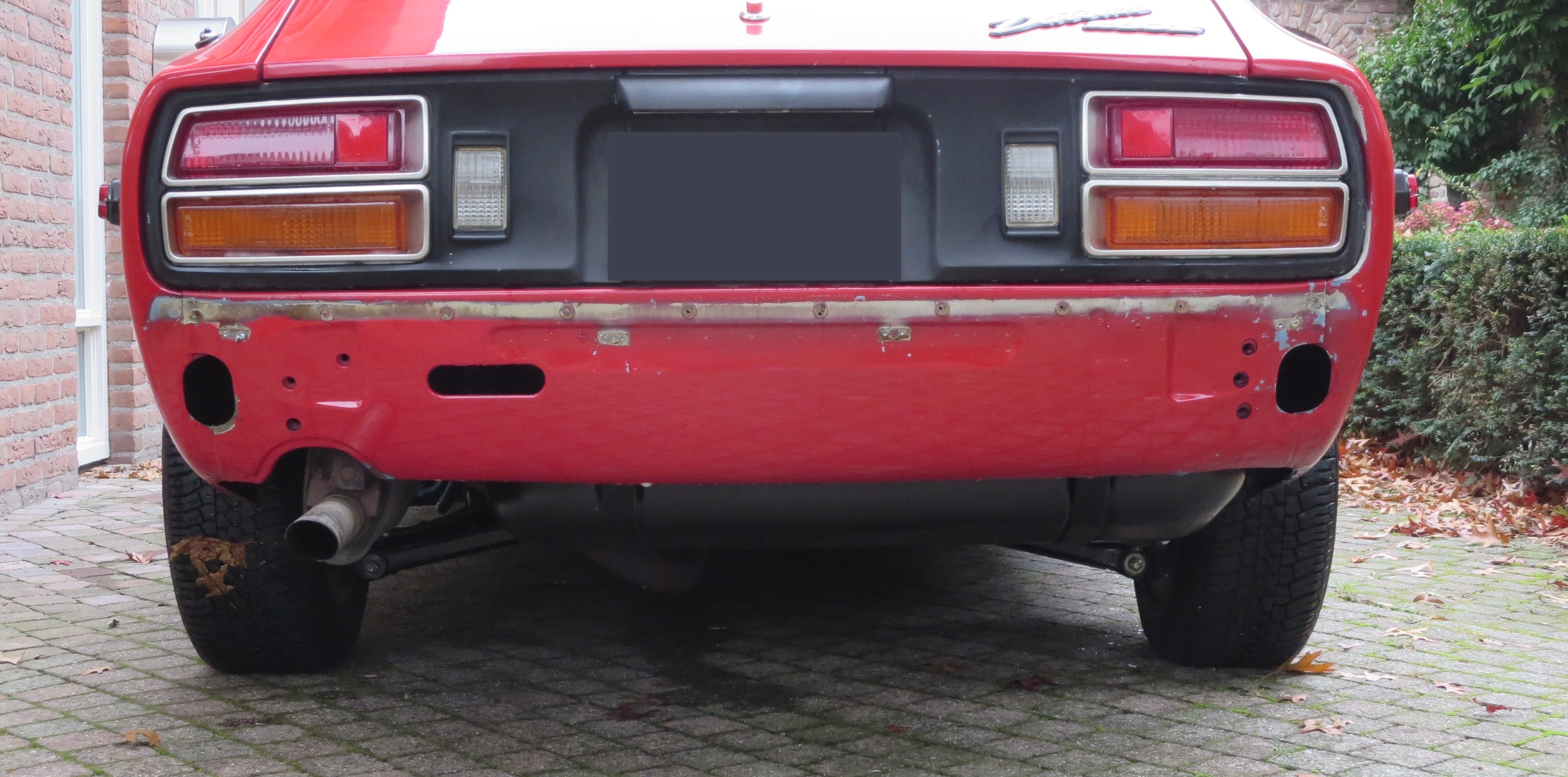

There has been a lot of disscussion about the series 1, 2 and 3 240Z. The 280Z has similar changes and at first glance August 77 seems to be the change over point.
I often see threads getting side tracked about these differences and when they occured. A lot of good inforamtion, but its scattered over a lot of different threads and difficult to find again.
This might be a goed way to collect information about these differences and share with other members.
To start:
Rear Panel
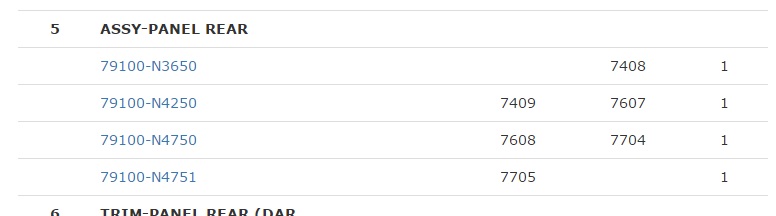
Im making brackets for my 240Z bumper mod. The first thing I noticed was the bolt pattern for the bumper brackets. According to the parts fiche they changed around 5/77.
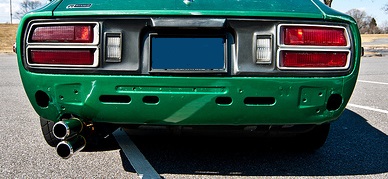
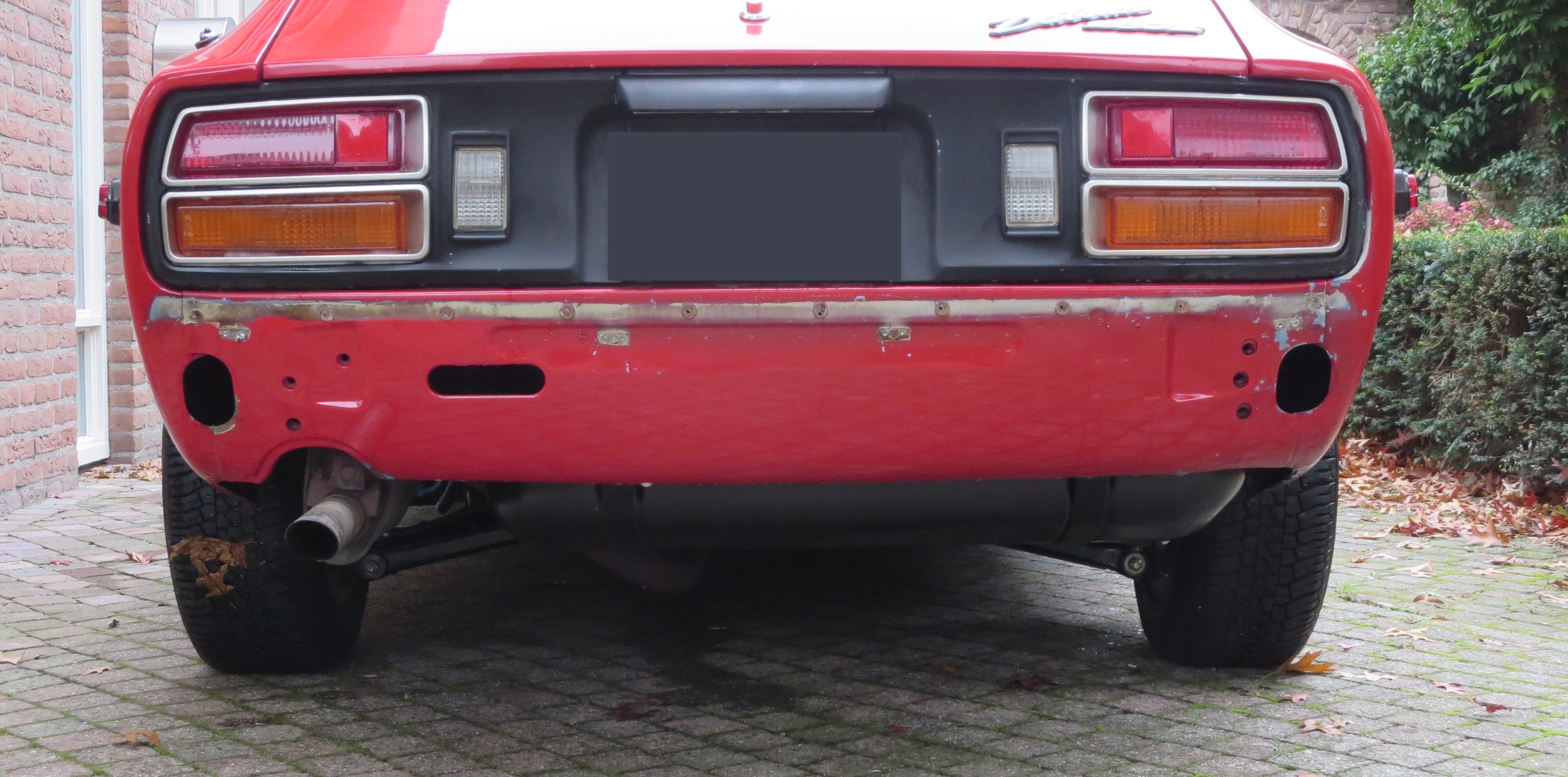
Before 5/77 the 2 bolts were in a diagonal pattern, left low and right high. The patterns were the same on the left and right side. After 5/77 the right side bracket changed to two in a vertical line.
Why they changed this is a mystery to me. It may be something to do with the 260Z outside the US. They were not used to mount the 280Z bumper.
The second difference is the four slots (two long and two small) changed to one long on the left side.
I have some photo's of the differences. The green car is a 76 and my red 280Z is a 5/77 (VIN: 403100). Mine is probably one of the first with this later version.
Recommended Comments
Create an account or sign in to comment