


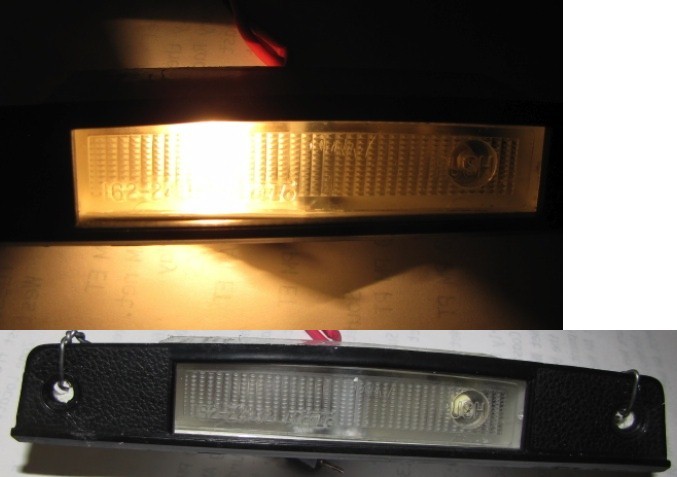

Hi all,
The map light in my 240Z got stuck so that when the switch was pushed in to make it turn on or off it would push in and wouldn't pop back out. This was partly due to the top and bottom of the assembly pushing in on the clear plastic switch cover causing the clear plastic to drag. To cure this I glued in a sawed off ordinary lead pencil to bow out the top and bottom of the assembly reducing the friction on the clear plastic switch. I experimented with different sawed off lengths of pencil and epoxied the pencil in when it was working right. I painted the yellow pencil gray to hide it behind the clear plastic better. A small bolt with a series of nuts would likely also work and would be adjustable. I also put a small amount of light machine oil on the switch itself on the white plastic post that sticks out of it and used a pocket knife to scrape smooth the plastic adjacent to the moving end of the clear plastic switch to make it more slippery. The plastic seemed to have dirt on it that was causing friction.
Mikes z car
Bottom View of post location (ignore file name):

After modification:

Modification notes:

Recommended Comments
Create an account or sign in to comment