My tub is blue! - Body & Paint - Classic Z Car Club Skip to content

My tub is blue!

Featured Replies

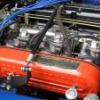
]My tub is finished with the exception of where the rotisserie was and final buffing. They guys a re leaving it on the rotisserie and trailering it to my shop. Now the hard work begins! The body/paint guy will do the fenders, doors, hatch, hood, etc, over the next month and have it ready when the car is back on it's wheels. The engine should be finished in a couple of weeks. I will put those pieces together as time allows. It will be a busy spring and summer for this old racer.

This thread is worthless without pics! :D

Oh no! Is Coastieee240z back and posting under a different name? :classic:

  • Author

I have the pics if you will show me how to post them. I have tried on this forum and it is too difficult for those of us who are computer stupid. Why is it so easy on other forums and so difficult on this forum? I guess it is only for the brilliant computer nerds, right?

S
Sponsored
Advertisement
Go Ad-Free
No ad showing? Ads help support ClassicZcars. If you use an ad blocker, please consider allowing ads on this site or Go Ad-Free.
  • Author

Thank you for the info. I will try it. I know this is for the "Photo Gallary". Will I be able to put pics in my posts, also?

Thank you for the info. I will try it. I know this is for the "Photo Gallery". Will I be able to put pics in my posts, also?

Yes, but it is a different method. For including pics in your posts, DON'T use the Quick reply box. Click either "QUOTE" (to include text from another post) or "REPLY". Enter your text, then scroll down the page to Click on "MANAGE ATTACHMENTS" (that's what you'll be doing, "attaching" pics) , click "BROWSE" to select your pic, the after you've done that, click "UPLOAD" to actually send the pic to the website. wait until the pictures upload is completed, then close the Manage Attach. window and Click on "SUBMIT REPLY" to complete the process.

Simple Simon.

Create an account or sign in to comment

Account

Navigation

Search

Search

Configure browser push notifications

Chrome (Android)
  1. Tap the lock icon next to the address bar.
  2. Tap Permissions → Notifications.
  3. Adjust your preference.
Chrome (Desktop)
  1. Click the padlock icon in the address bar.
  2. Select Site settings.
  3. Find Notifications and adjust your preference.